

Why You Need to Claim Your Business on ChatGPT Now
ChatGPT is helping customers decide which businesses to trust, but it doesn’t always get the facts right. OpenAI’s new Business Hub lets eligible businesses claim their profiles, manage key company information, and see how customers discover them. It’s an important step toward giving businesses a voice in how they’re represented by AI.
Why Should You Care What ChatGPT Says About Your Business?
What ChatGPT says about your business matters because customers may use that information to decide whether to contact you or a competitor. Imagine a potential customer asking ChatGPT to recommend a business like yours. The answer may sound convincing, but it could be based on outdated services, missing locations, or a partial understanding of your expertise.
You’ve spent years building the reputation of your business. You don’t want potential customers making decisions based on inaccurate information, especially when you may not even know what they’re seeing.
What Changed When OpenAI Introduced Business Hub?
OpenAI’s November 10, 2026 announcement gives eligible businesses a way to claim their ChatGPT profiles and manage important company information. Through its new Businesses in ChatGPT program, OpenAI is giving companies a more direct voice in how they’re represented. Think of it as a Google Business Profile for the AI era, although the platforms work differently.
You won’t control ChatGPT’s recommendations, but you can help it get the facts right. For
businesses trying to protect their reputations, that’s a meaningful improvement.
AI has been telling businesses' stories without giving them much of a say. That's what makes this announcement so important. ChatGPT is giving business owners a seat at the table, and that's a big step in the right direction.

Can You See How Customers Find Your Business in ChatGPT?
Verified businesses are able to access ChatGPT Business Hub insights showing qualifying business mentions, website clicks, and discovery topics. This may be the most valuable part of the announcement. Customers can research your company, compare competitors, and make decisions without ever visiting your website. That creates a pretty big gap in understanding how people find you.
Business Hub helps narrow that gap by showing when your business appears in qualifying results and what topics are associated with those appearances. The reporting has limitations and doesn’t reveal private conversations, but it gives businesses a useful new source of information about AI-driven discovery.
We've always been able to measure clicks and conversions from traditional search. AI has made that more complicated because customers can research your business without ever visiting your website. These new insights give us another way to understand what's happening before that click.

Will Claiming Your ChatGPT Profile Make You More Visible?
Claiming your ChatGPT profile doesn’t guarantee more recommendations, but it gives you a better way to manage the accuracy of your business information. OpenAI confirms that claiming doesn’t directly influence ChatGPT’s independent recommendations.
Just as claiming your Google Business Profile doesn’t automatically earn you a top ranking, claiming your ChatGPT profile isn’t a shortcut to AI visibility. Your website, reviews, expertise, and what credible third parties say about you still matter.
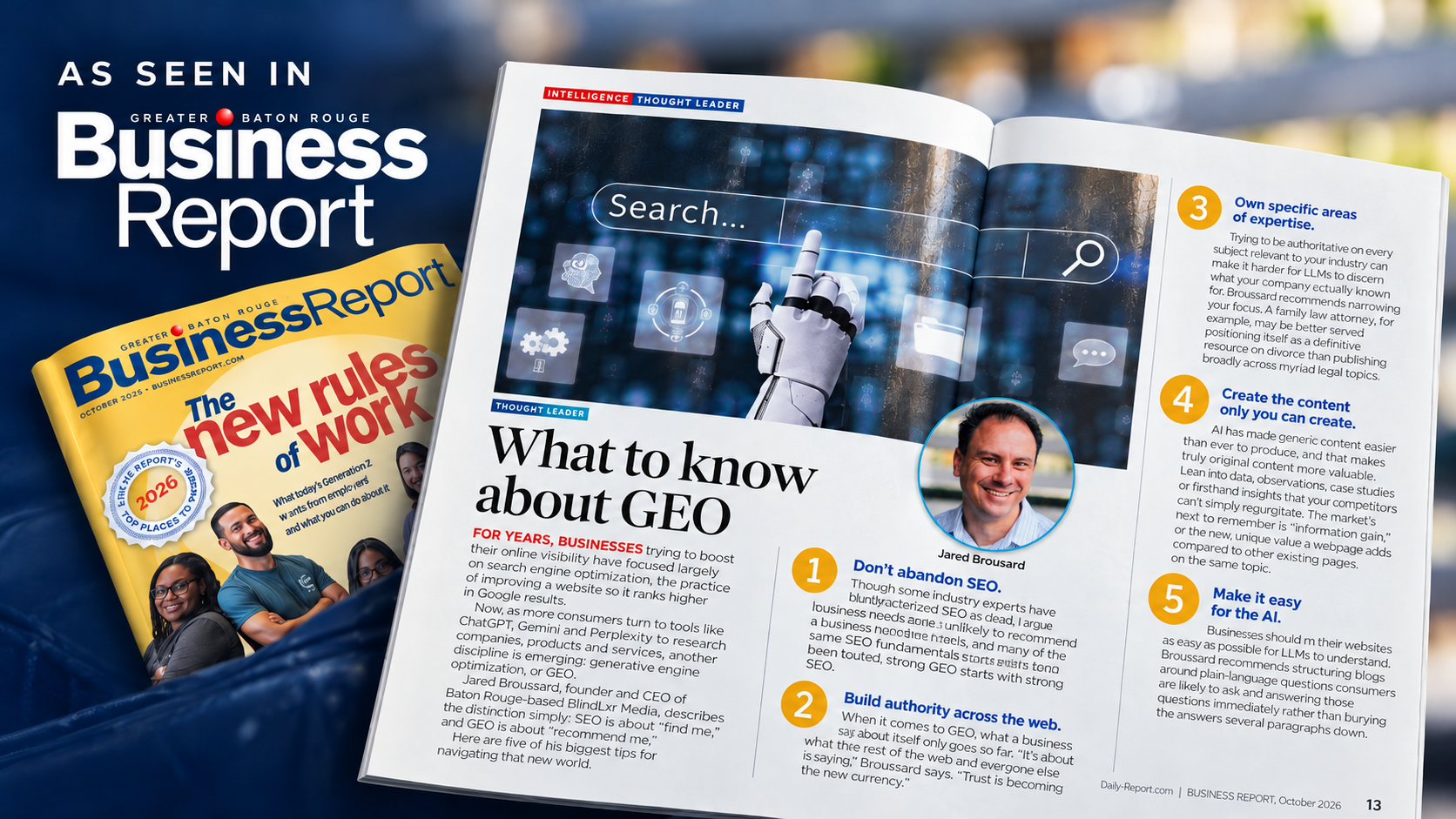
That’s the foundation of Generative Engine Optimization (GEO), which helps AI platforms discover, understand, and accurately represent your business. Claiming your profile supports that work, but it doesn’t replace it. You can help ChatGPT get your facts right, but you still have to earn your reputation.
You've worked hard to build your business and earn your reputation. The last thing you want is a potential customer making a decision based on outdated or incorrect information. Having a way to provide accurate details directly to ChatGPT is a welcome change.

Need Help Claiming Your Business on ChatGPT?
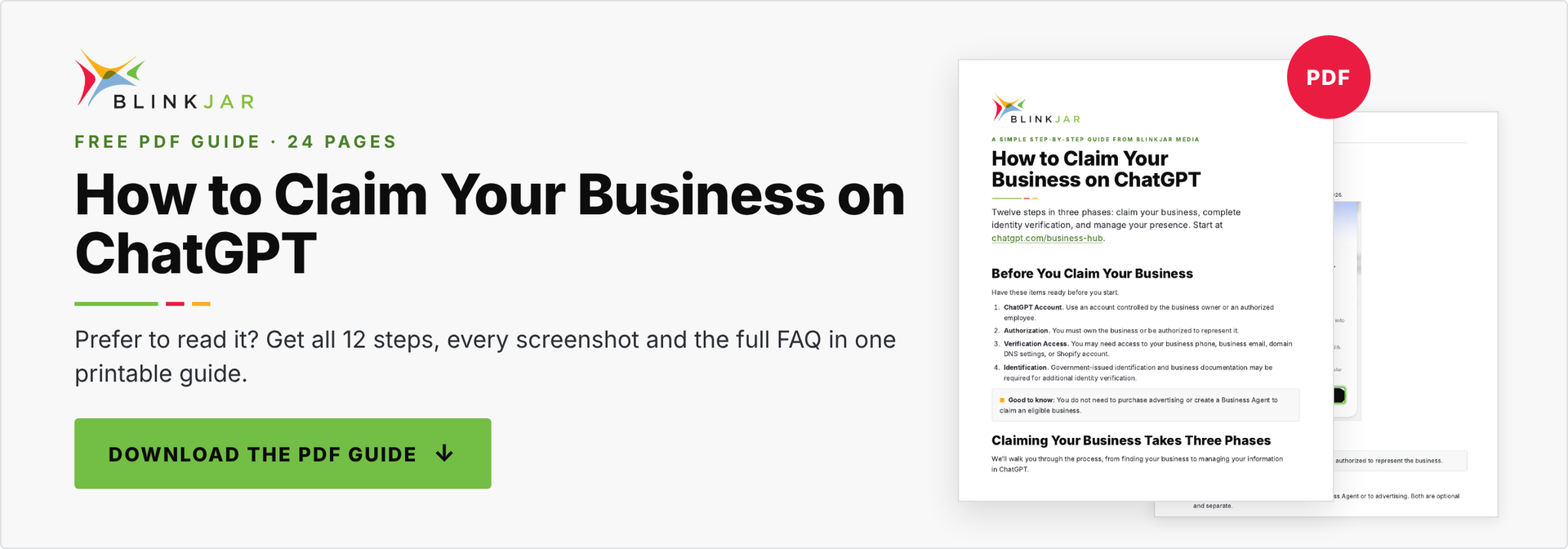
Download BlinkJar’s Interactive Guide: How to Claim Your Business on ChatGPT.
If you run into problems, OpenAI also provides official setup and troubleshooting instructions.
Business Hub is still in beta, so eligibility and available features may vary. We recommend claiming your business if you can, reviewing what ChatGPT says about you, and correcting inaccurate information wherever possible.
You can also follow our visual walkthrough with actual screenshots, step-by-step instructions, and guidance for common verification questions below. Click the red "PLAY WALKTHROUGH" button" for it to play.
A SIMPLE STEP-BY-STEP GUIDE FROM BLINKJAR MEDIA
Before You Claim Your Business
Have these items ready before you start.
ChatGPT Account
Use an account controlled by the business owner or an authorized employee.
Authorization
You must own the business or be authorized to represent it.
Verification Access
You may need access to your business phone, business email, domain DNS settings, or Shopify account.
Identification
Government-issued identification and business documentation may be required for additional identity verification.
GOOD TO KNOW You do not need to purchase advertising or create a Business Agent to claim an eligible business.
12 STEPS · 3 PHASES
Claiming Your Business Takes Three Phases
We’ll walk you through the process, from finding your business to managing your information in ChatGPT.
Claim Your Business
Find your business, verify ownership, and confirm your claim.
Steps 1–7Complete Verification
Submit your identity information through Persona and await approval.
Steps 8–9Manage Your Presence
Review your business details, explore insights, and invite your marketing team.
Steps 10–12GOOD TO KNOW Select a phase below to jump straight to it, or select Next to start with Step 1.
STEP 1 OF 12
Find Your Business in ChatGPT
Visit ChatGPT Business Hub and search for your business.
- Open chatgpt.com/business-hub, or choose Business Hub in the ChatGPT sidebar.
- Sign in to your ChatGPT account.
- Enter your business name.
- Choose the matching listing.

Actual ChatGPT screen · BlinkJar Media’s claim, Nov. 11, 2026 · Our capture shows the name typed into the search field. Matching listings appear once you search.
More detail Close detail
If your business does not appear
- Whether you can create a listing depends on eligibility.
- Certain eligible online businesses may create new profiles.
- Local stores and restaurants are currently limited to claiming existing U.S. listings.
If someone else has claimed it
- Open the profile, select the more options menu (•••), then Dispute ownership . You will verify through Persona that you are authorized.
If the listing says Contact support
- The listing is locked. Select Contact support to ask OpenAI for help with access.
GOOD TO KNOW Select the listing that matches your business.
STEP 2 OF 12
Start Your Business Claim
Select Get started .
- Read what claiming gives you.
- Select Get started .

Actual ChatGPT screen · BlinkJar Media’s claim, Nov. 11, 2026
More detail Close detail
What you are agreeing to
- Starting a claim does not commit you to a Business Agent or to advertising. Both are optional and separate.
- Continuing accepts OpenAI’s Businesses in ChatGPT Terms, linked on the Business Hub screen. Read them first.
GOOD TO KNOW You’ll need to verify that you’re authorized to represent the business.
STEP 3 OF 12
Confirm Your ChatGPT Account
Make sure you’re using the account that should manage your business.
- Check the account shown on screen.
- If it is the wrong one, sign out and switch before you continue.
- Select Continue .

Actual ChatGPT screen · BlinkJar Media’s claim, Nov. 11, 2026 · The account email is removed from this capture.
More detail Close detail
If you received a claim invitation by email
- The authorized recipient should follow that invitation using the account it was sent to.
- Do not forward a personal claiming invitation to another person.
Working with an agency
- Agency access can be granted later, in Step 12. The company should claim the profile itself.
GOOD TO KNOW We recommend using an account controlled by your company.
STEP 4 OF 12
Choose How to Verify Your Business
Select one of the verification methods available to your company.
- Review the methods ChatGPT offers for your business.
- Select the one you can complete. BlinkJar used Website domain .
- Select Continue .

Actual ChatGPT screen · BlinkJar Media’s claim, Nov. 11, 2026
More detail Close detail
Four possible methods
- Business phone: Receive a code by text or automated call and enter it into ChatGPT.
- Business email: Receive a verification code at an eligible business email address.
- Website domain: Add a TXT verification record to the domain’s DNS settings.
- Shopify store: Connect the eligible Shopify store and complete the authorization process.
Important
- Not every business will see all four options. BlinkJar’s claim offered two: Business phone and Website domain.
- DNS verification is not mandatory. Use whichever offered method you can complete.
GOOD TO KNOW Your available verification methods may differ.
STEP 5 OF 12
Verify Your Business
Follow the instructions for the verification method you selected. This example shows the Website domain method.
- Copy the TXT record information provided by ChatGPT.
- Open your domain’s DNS settings.
- Create a TXT record.
- Enter the provided host and value exactly.
- Save the record.
- Return to ChatGPT.
- Select Verify domain .

Actual ChatGPT screen · BlinkJar Media’s claim, Nov. 11, 2026 · BlinkJar’s unique verification value is removed from this capture. Yours appears in Business Hub.
More detail Close detail
DNS help
- DNS settings may be managed by a domain registrar, a hosting provider, or another DNS service.
- Some DNS providers automatically append the domain name, so the host may need to be entered without it.
- The TXT record must match the supplied instructions exactly.
- DNS changes may require propagation time.
- Verification records can expire. The screen shows when.
- If a record expires, get current instructions from Business Hub.
- Do not modify unrelated DNS records.
- Contact your website administrator if you need assistance.
GOOD TO KNOW DNS changes may take time. Your website administrator can help if needed.
STEP 6 OF 12
Your Claim May Need Review
Follow any remaining prompts and wait for OpenAI’s decision if your claim requires review.
- Finish any prompts ChatGPT shows after verification.
- If your claim is placed under review, wait for OpenAI’s decision.
- Respond if OpenAI asks for additional information.
What a claim review looks like
Not every business goes through a review screen.
Illustration · Not a ChatGPT screen. We did not capture this step, so no screenshot is shown.
More detail Close detail
What to expect
- Some claims may be placed under review. Not every business sees this screen.
- OpenAI may notify the business by email when the claim is approved or when additional information is required.
GOOD TO KNOW Watch the email associated with your ChatGPT account.
STEP 7 OF 12
Your Business Has Been Claimed
Once the claim is approved, open your business through Business Hub.
- Look for the confirmation that you’ve claimed your business.
- Select Manage your business .

Actual ChatGPT screen · BlinkJar Media’s claim, Nov. 11, 2026 · The large button on this screen opens the optional Business Agent. You do not need it to finish claiming.
More detail Close detail
Claimed is not the same as verified
- The business claim and Persona identity verification are separate.
- A successful claim does not automatically mean all profile-management features are available.
- Business Agent setup and advertising credit appear on this screen. Neither is a required step.
GOOD TO KNOW Your business claim is complete. Additional identity verification may still be required.
SECTION COMPLETED
Phase 1: Claim Your Business
You’ve learned how to find, verify ownership of, and claim your business.
Next comes the separate identity verification process.
Claim Your Business
Find your business, verify ownership, and confirm your claim.
Steps 1–7 Section completedComplete Verification
Submit your identity information through Persona and await approval.
Steps 8–9 Up nextManage Your Presence
Review your business details, explore insights, and invite your marketing team.
Steps 10–12Checkmarks show your progress through this guide. They do not show the status of your ChatGPT account.
GOOD TO KNOW Next: identity verification through Persona.
STEP 8 OF 12
Complete Your Identity Verification
Follow the instructions to verify your identity through Persona.
- Where offered, select Verify with Persona .
- Select Continue to Persona .
- Complete the requested submission.
Two separate checks
- Government-issued ID
- Business registration documents
- Proof of authorization
- Matching company information
Have these ready. Persona tells you which ones it needs.
Illustration · Not a ChatGPT screen. We did not capture this step, so no screenshot is shown.
More detail Close detail
Why this step exists
- Once your business claim is approved, OpenAI requires additional identity verification before certain Business Hub features become available.
- That includes publishing changes to your business information, connecting a product feed, viewing insights, and creating a Business Agent if your business is eligible.
What it may involve
- Government-issued identification.
- Business registration documents.
- Proof of authorization.
- Matching company information.
If you skipped verification
- Return to the business overview and select Complete verification with Persona , then follow the instructions.
Labels can vary
- Telos Creative’s walkthrough shows a dashboard banner about verifying with a government-issued ID and a Start verification button when editing business info. Follow whichever prompt your account shows.
GOOD TO KNOW This identity verification is separate from confirming business ownership.
STEP 9 OF 12
Watch for Your Approval Email
After submitting your identity verification, wait for OpenAI’s review decision.
- Monitor the inbox associated with your ChatGPT account.
- Check spam or junk folders.
- Look for an OpenAI notification regarding verification.
- Return to Business Hub to review the current status.
- Follow any request for additional information.
After you submit to Persona
Check your inbox and spam folder, then confirm the status in Business Hub.
Illustration · Not a ChatGPT screen. We did not capture this step, so no screenshot is shown.
More detail Close detail
Timing
- OpenAI does not guarantee a particular approval timeframe.
- Do not resubmit documents while an active review is pending.
If verification fails
- Follow the instructions in the decision email.
- Use Try again if available.
- Verify that business information matches official records.
- Contact OpenAI Support if necessary.
GOOD TO KNOW Review times vary. Watch your email and Business Hub for updates.
SECTION COMPLETED
Phase 2: Complete Verification
Once OpenAI approves your Persona verification, you can access additional Business Hub management features.
Claim Your Business
Find your business, verify ownership, and confirm your claim.
Steps 1–7 Section completedComplete Verification
Submit your identity information through Persona and await approval.
Steps 8–9 Section completedManage Your Presence
Review your business details, explore insights, and invite your marketing team.
Steps 10–12 Up nextCheckmarks show your progress through this guide. They do not show the status of your ChatGPT account.
GOOD TO KNOW Next: review your profile, read your insights, and invite your team.
STEP 10 OF 12
Review and Update Your Business Profile
Return to Business Hub and make sure your business information is accurate.
- Open Business Hub.
- Select the claimed business.
- Review available information.
- Correct inaccurate or outdated details.
- Submit changes for review.
Profile review checklist
- Business name
- Website
- Business description
- Products or services
- Business category
- Logo
- Cover photo
- Policies and additional fields
Fields vary by business type. OpenAI reviews changes before publishing them.
Illustration · Not a ChatGPT screen. We did not capture this step, so no screenshot is shown.
More detail Close detail
Don’t assume it’s right
- A listing existing does not mean its details are correct. Check every available field.
- Telos Creative documented inaccuracies in its own listing, including the wrong logo and a website link that pointed to an interior page. That was Telos’s experience, not BlinkJar’s.
Review and publishing
- OpenAI reviews submitted business profile changes before publishing them.
- Updates may not appear immediately.
- If a new business profile was created through a supported Persona workflow, publication may follow approval automatically.
- The available fields may differ by business type.
GOOD TO KNOW Keep your business information accurate, current, and complete.
STEP 11 OF 12
Explore Your ChatGPT Insights
Review the available information about how people discover your business in ChatGPT.
- Open your business in Business Hub.
- Review mentions, website clicks, and discovery topics.
- Note today’s numbers as your baseline.
What the insights view reports
Sample layout only. No real data is shown. Your numbers appear once there is enough activity to report.
Illustration · Not a ChatGPT screen. We did not capture this step, so no screenshot is shown.
More detail Close detail
What the metrics mean
- Mentions: Qualifying appearances of your business in relevant ChatGPT results or references.
- Website clicks: Clicks from supported ChatGPT business experiences to your website.
- Discovery topics: Common themes across conversations where your website is cited.
- Other metrics: If your dashboard shows more, such as profile views, use the definitions OpenAI gives in Business Hub.
Reporting limits
- OpenAI documents an aggregated 28-day insights view.
- Certain metrics may be unavailable until enough reportable activity occurs. A blank metric does not necessarily mean no activity.
- Insights do not provide individual customer prompts or private conversations.
- Website clicks are not equivalent to qualified leads or conversions.
- Business Hub does not measure your visibility on other AI platforms.
GOOD TO KNOW These insights help you understand AI discovery, but don’t tell the whole marketing performance story.
STEP 12 OF 12
Invite Your Marketing Team
Grant appropriate access to the people who help manage your business’s online presence.
- Open your business in Business Hub.
- Add teammates, or grant your agency access.
- Have each person use their own ChatGPT account.
Who holds the keys
No shared passwords. No forwarded invitations.
Illustration · Not a ChatGPT screen. We did not capture this step, so no screenshot is shown.
More detail Close detail
Access rules
- The admin who claimed the business can add teammates in Business Hub and grant an agency access.
- Use individual accounts. Do not share passwords.
- Do not forward personal claim invitations as a substitute for access management.
- If the business was claimed in a ChatGPT workspace, invitees may need to be members of that workspace. If an agency invitation is blocked, contact OpenAI Support.
BlinkJar’s recommendation
- Your company should keep ownership of its business profile. Then invite BlinkJar Media or other authorized marketing partners to help manage it.
GOOD TO KNOW Your company controls the profile while trusted partners help maintain it.
GUIDE COMPLETED
You’re Ready to Manage Your Business in ChatGPT
You’ve learned the complete process, from claiming and identity verification to profile management and reporting.
Claim Your Business
Find your business, verify ownership, and confirm your claim.
Steps 1–7 Section completedComplete Verification
Submit your identity information through Persona and await approval.
Steps 8–9 Section completedManage Your Presence
Review your business details, explore insights, and invite your marketing team.
Steps 10–12 Section completedCheckmarks show your progress through this guide. They do not show the status of your ChatGPT account.
GOOD TO KNOW Next: an optional check of what customers actually see.
NOT A REQUIRED STEP
Bonus: See What Customers See
Once your profile is claimed and verified, check how ChatGPT actually represents your business.
- Open a separate ChatGPT conversation.
- Ask the questions a customer would ask, using your own business name.
- Compare each answer with the checklist.
Questions to ask
- “What can you tell me about BlinkJar Media in Baton Rouge?”
- “What services does BlinkJar Media offer?”
- “How can I contact BlinkJar Media?”
What to check
- Correct company name.
- Accurate website.
- Correct logo.
- Accurate contact details.
- Correct locations.
- Accurate services.
- Clear and current business descriptions.
Illustration · Example questions use BlinkJar Media. Swap in your own business.
More detail Close detail
Why answers can differ from your profile
- ChatGPT’s answers can draw from multiple sources. Claiming and editing a business profile does not guarantee every generated answer will reproduce the exact information supplied.
GOOD TO KNOW Don’t stop at claiming your business. Make sure customers are seeing accurate information.
SUPPLEMENTAL
What Else Can You Do in Business Hub?
None of these is required to claim your business.
Business Agents
Eligible businesses may create an AI experience that answers questions about their products, services, and policies.
Availability depends on OpenAI eligibility requirements. At launch, that means eligible ecommerce and online service businesses in the U.S.
Product Feeds
Eligible retailers can provide structured product information, including pricing and availability, through supported feeds or Shopify connections.
Product feeds are not required for a basic claim.
Advertising
Advertising opportunities may be available separately. You do not need to purchase advertising to claim a profile.
Advertising does not provide control over ChatGPT’s independent recommendations.
GOOD TO KNOW Keep these separate from claiming. Finish Steps 1–12 first.
You’ve Claimed Your Business. What’s Next?
Claiming your business in ChatGPT is an important first step toward managing your presence in AI search.
But claiming a profile doesn’t guarantee greater visibility or more recommendations.
Continue strengthening your business information, website content, reputation, and overall online authority.
Claim your business on ChatGPT Need help? Contact BlinkJar Media
Helping businesses get found in a changing search landscape.
GOOD TO KNOW Questions about a step? The troubleshooting and FAQ section covers the common ones.
TROUBLESHOOTING & FAQ
What if something goes wrong?
Short answers to the questions clients ask most. Select a question to open it.
Business Eligibility and Ownership
1 What if my business doesn’t appear in ChatGPT Business Hub?
Check the spelling and confirm you are signed in. If it still does not appear, your options depend on eligibility. Certain eligible online businesses may create a new profile. Local stores and restaurants are currently limited to claiming existing U.S. listings.
2 Can I create a new business listing?
Only if your business type is eligible. Business Hub offers the option when it applies. Local stores and restaurants cannot create a new listing at this time.
3 What if someone else already claimed my business?
Open the business profile, select the more options menu (•••), then select Dispute ownership . You will verify through Persona that you are authorized to represent the business. OpenAI says disputing ownership does not change the profile’s visibility in ChatGPT.
4 What does Contact support mean on a listing?
The listing is locked and cannot be claimed through the standard flow. Select Contact support to ask OpenAI Support for help with access.
5 Can I claim multiple business locations or brands?
Not in one step. OpenAI says central management across a parent company’s brands and locations isn’t currently available, and claiming the main brand does not claim its locations. Claim each one separately. If you have an OpenAI account contact, ask them about the supported claim path.
6 What if I received a personal claiming invitation by email?
The person it was sent to should follow it, using the ChatGPT account tied to that invitation. Do not forward it. Other people get access later through Business Hub.
Verification Methods
7 Which verification method should I choose?
The one you can finish with access you already control. Only the methods ChatGPT offers for your business will appear, so you may not see all four. BlinkJar was offered Business phone and Website domain, and used Website domain.
8 How do I verify using my business phone?
Choose Business phone . ChatGPT sends a code by text or phone call. Enter the code in ChatGPT. Make sure someone can answer the business line.
9 How do I verify using my business email?
Choose Business email if it is offered. ChatGPT sends a verification code to an eligible business email address. Enter the code in ChatGPT.
10 How does Shopify verification work?
Connect your eligible Shopify store, from Business Hub or from your Shopify admin, and complete the authorization. Identity verification through Persona is still a separate step.
11 Where do I add the DNS TXT record?
At the company that manages DNS for your domain. That may be your domain registrar, your hosting provider, or a separate DNS service. Create a new TXT record using the host and value ChatGPT shows. Leave your existing records alone.
12 Why isn’t my DNS verification working?
Check four things. Record accuracy: the host and value must match exactly, with no extra spaces. Provider formatting: some providers add your domain to the host automatically, so you may need to enter the host without it. Propagation: DNS changes can take time to appear. Expiration: the record may have expired.
13 What happens if my TXT verification record expires?
Return to Business Hub, start the domain verification again to get current instructions, and replace the old TXT value with the new one. The verification screen shows when a record expires.
Persona and Approval
14 Why do I have to submit a government ID?
OpenAI uses Persona to confirm that the person managing a profile is authorized to represent the business. It is required before you can publish changes to your business information, connect a product feed, view insights, or create a Business Agent if your business is eligible.
15 What information does Persona require?
It may ask for government-issued identification, business registration documents, and proof of authorization. Your company information should match your official business records. Provide what the screens request.
16 How long does identity verification take?
Approval times vary. OpenAI does not guarantee a timeframe, so we won’t either.
17 How will I know when I’m approved?
OpenAI sends its decision to the email address on your ChatGPT account. You can also check the status of your business in Business Hub.
18 Which email address sends the approval notice?
We do not list one, because OpenAI does not publish a guaranteed sender address. Check your spam folder. If you are unsure about a message, skip the links and open Business Hub directly to check your status.
19 What if my verification fails?
Follow the instructions in the decision email. Use Try again if it is available. Confirm that your business information matches official records. If you are still stuck, contact OpenAI Support.
20 Can I return later to complete Persona verification?
Yes. Open Business Hub, select your business, find Complete verification with Persona in the business overview, and follow the instructions.
Business Profile Management
21 Why is my business information incorrect?
ChatGPT built the listing from sources across the web before you claimed it. Telos Creative found the wrong logo and an interior page listed as its website. Once you are verified, correct every field. Fix the same details on your website and other listings too.
22 How do I update my logo or website?
After your Persona verification is approved, open your business in Business Hub, edit your business information, and submit the change. OpenAI reviews changes before they are published.
23 Why aren’t my changes appearing in ChatGPT?
Two reasons. OpenAI reviews profile changes before publishing them, so updates are not instant. And ChatGPT’s answers draw from multiple sources, so an answer may not repeat your profile word for word.
24 Why does my insights dashboard show no data?
Insights are aggregated and only appear once there is enough activity to meet OpenAI’s reporting thresholds. They also require an approved claim and approved Persona verification. A blank metric does not necessarily mean no activity.
25 Can I see the individual questions customers ask?
No. OpenAI does not share users’ conversations with businesses. You see aggregated counts and discovery topics.
26 How do I give my marketing agency access?
The admin who claimed the business adds teammates in Business Hub and can grant an agency access. Each person uses their own ChatGPT account. If the business was claimed in a ChatGPT workspace, invitees may need to be members of that workspace. If an agency invitation is blocked, contact OpenAI Support.
27 Can I delete or unpublish my business profile?
It depends on whether the profile is published. OpenAI treats an unpublished draft differently from a published profile, so follow the current steps in OpenAI’s setup article for your situation. If Business Hub does not show the option you need, contact OpenAI Support.
General Questions
28 Do I need a Business Agent?
No. Business Agents are optional and limited to eligible businesses. You can claim and manage your business without one.
29 Do I need to advertise?
No. You do not need to purchase advertising to claim a profile. Advertising also does not control ChatGPT’s independent recommendations.
30 Do I need a Shopify store?
No. Shopify is one of several verification methods, and a convenient way for Shopify merchants to share product information.
31 Does claiming improve my rankings in ChatGPT?
Not by itself. OpenAI says claiming a profile does not change its visibility in ChatGPT. Claiming lets you manage your information and see insights. It does not guarantee more recommendations.
32 How do I contact OpenAI Support?
Start at help.openai.com. For a locked listing, use Contact support on the listing itself.
Answers follow OpenAI’s article Setting up your business on ChatGPT, checked Nov. 11, 2026. Businesses in ChatGPT is in beta, so labels and rules can change. For anything not covered here, go to help.openai.com.